 Design Copilot · Figma to Code
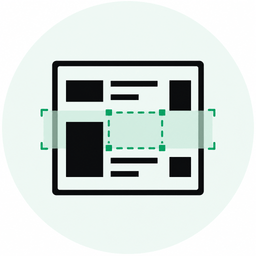
Trace on the canvas
Import from Figma or drop a screenshot, then trace the design directly on the canvas.
Design Copilot turns Figma designs into AI-ready React and Tailwind that matches 1:1. Trace the layout on the canvas, then hand it to Cursor.
Design Copilot is one loop: trace the Figma design, then export what AI needs to rebuild it pixel for pixel.
Import from Figma or drop a screenshot, then trace the design directly on the canvas.
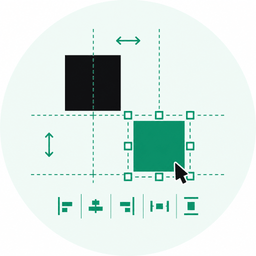
Place, resize, and align until every measurement matches the Figma layout.
Get React, Tailwind, assets, and layout context your coding agent can use right away.
Four steps from a Figma design to 1:1 AI-ready code.
What Design Copilot is, how 1:1 matching works, and how the Figma plugin fits.
Design Copilot (DesignCopilot) is a local-first visual layout editor. You trace a Figma design or screenshot on the canvas, then export AI-ready code and assets that match the layout 1:1.
Export layers with the Design Copilot Figma plugin, or drop a screenshot onto the canvas. Place and align elements over the reference, then export React, Tailwind, HTML, or a markdown spec for your coding agent.
1:1 means the exported layout keeps the same positions, sizes, and spacing you set on the canvas. Design Copilot gives the coding agent exact measurements instead of asking it to guess from a screenshot.
Yes. You can export React with Tailwind, JSX, HTML, CSS, or a markdown design spec. The export is meant to be pasted into tools like Cursor or Windsurf.
No. The companion Figma plugin exports selected layers as a package you import locally. You can also upload a screenshot and trace it without Figma.
Yes. Projects save in your browser, and you can export JSON. There is no account and no design data sent to a backend.